
How do I set up recurring payments?
How to Set Up Recurring Payments:
First, go to https://www.ebenefitsnow.com/go/bcbsnc and log in using the UserId and Password provided by Lawyers Insurance.
You will be at the Home Page which will display system information about your firm.
The area at the bottom of the screen (marked 1) is the Invoices and Payments area where you can see and download billing information. The Payment Portal (marked 2) is where you can pay your invoice.
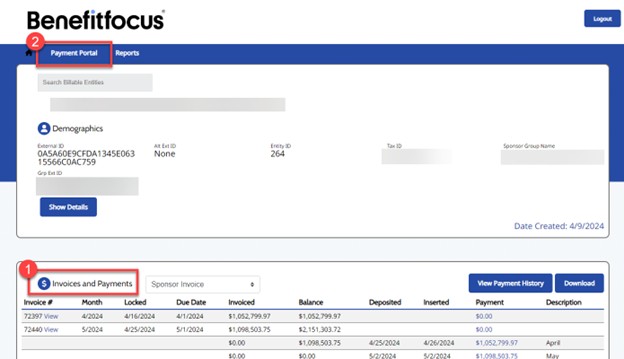
Click on “Payment Portal” (marked with a 2 below) on the Billing Portal Home Page:
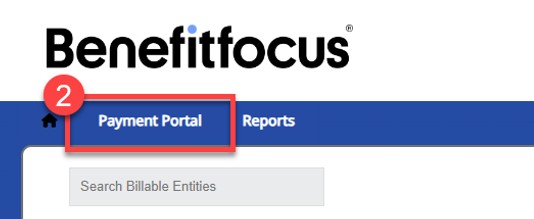
**Please verify that on the Payment Portal Home Page your firm number is displayed at the top of the page and Invoice Type is listed as “Site Invoice” before proceeding**
Ex:
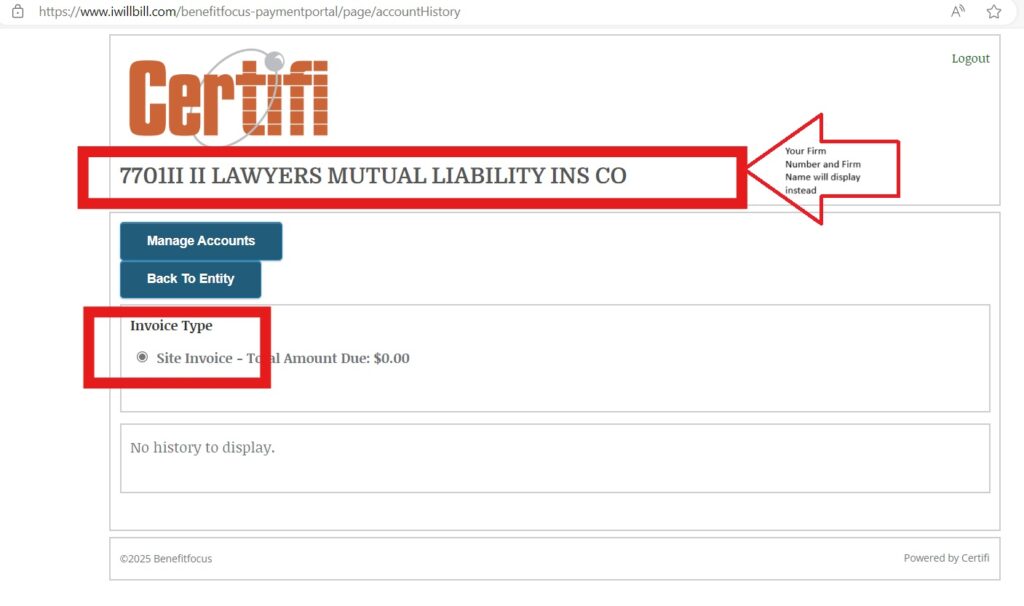
On the Payment Portal Home Page select “Manage Accounts”
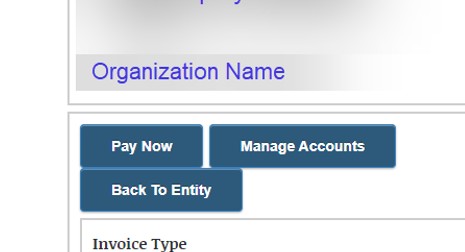
Click “Add Account”
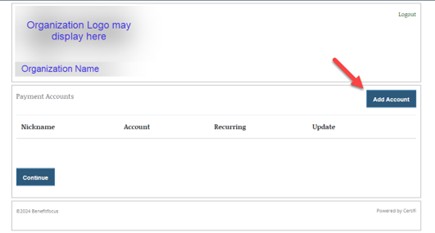
A form will be displayed to enter your account information. Please enter all fields.
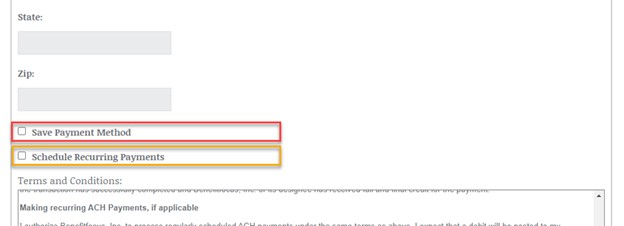
Once data is entered, there are two check boxes below that should be checked to set up recurring payments:
“Save Payment Method” will save the account information only- no payments will be pulled unless initiated by an authorized user from your organization using the “Pay Now” page.
“Schedule Recurring Payments” when checked will enable funds to be automatically debited from your ACH account on the Due Date without requiring an authorized user to initiate payment each month.
If you desire recurring payments to be enabled, please ensure that the checkbox is marked beside “Schedule Recurring Payments”.
Recurring payments are submitted for processing on the 20th of the month and will clear the bank typically 1-3 business days later.
**Please note that recurring payments will process for the total balance due on the account including any past due premiums.
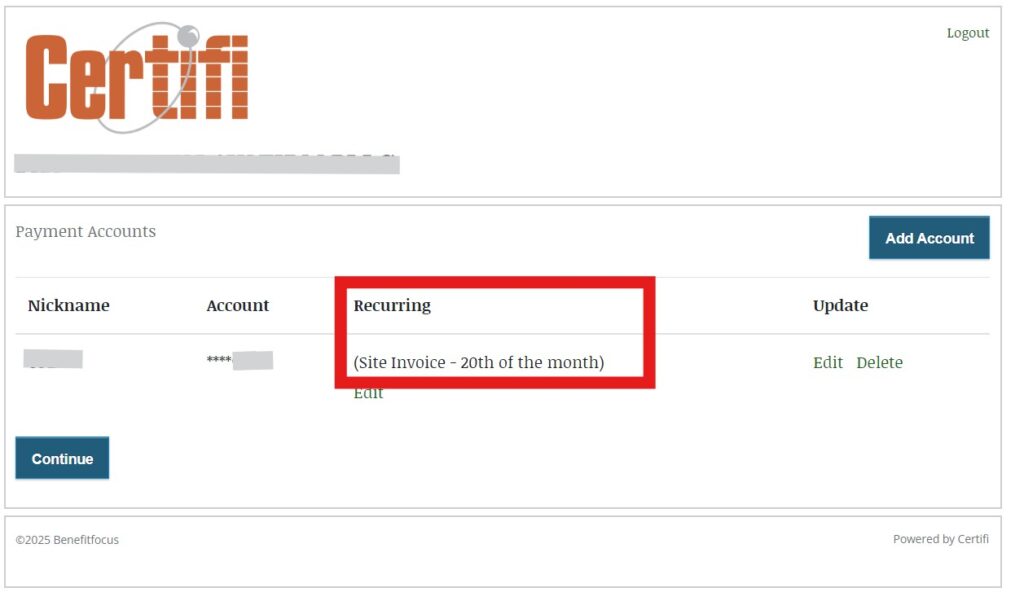
After submitting your account information, it will be saved in the portal and displayed as seen below.
You can edit or delete the saved payment method at any time using the green “Edit” and “Delete” options marked with the red arrow below.
Please confirm that the information displays the correct recurring indication as expected.
If you selected the option for Recurring Payments you would see an indicator underneath the Recurring heading that says “(Site Invoice- 20th of the month)”.
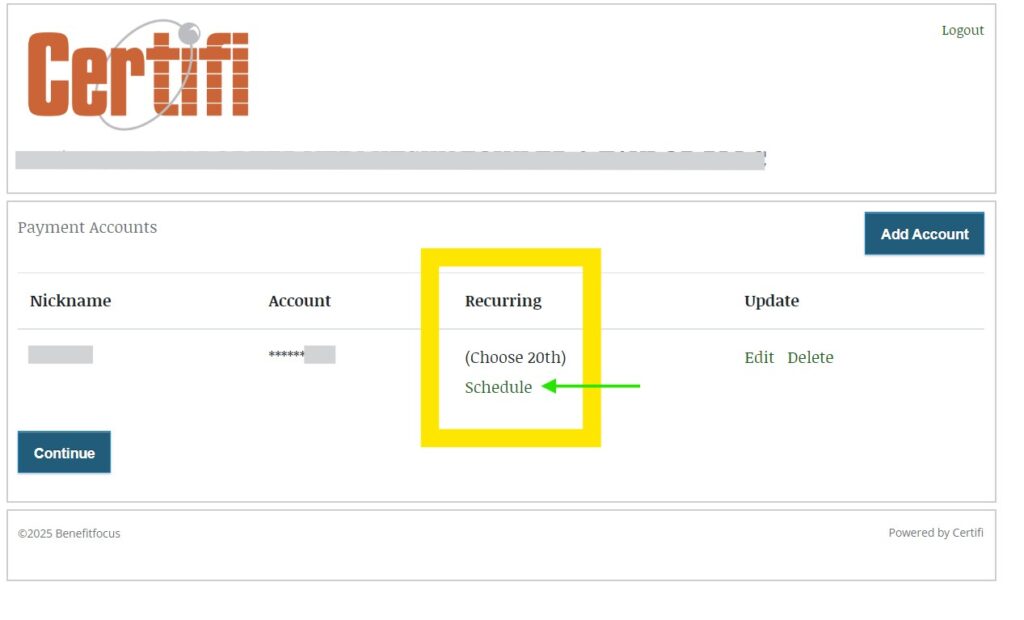
If the indicator is blank or says “Choose 20th” such as in the example below, the account is not set up on recurring payments. The “Schedule” link marked by the green arrow can be clicked and the prompts followed to change the account to recurring.
Click “Continue” to be taken back to the Payment Portal Page.
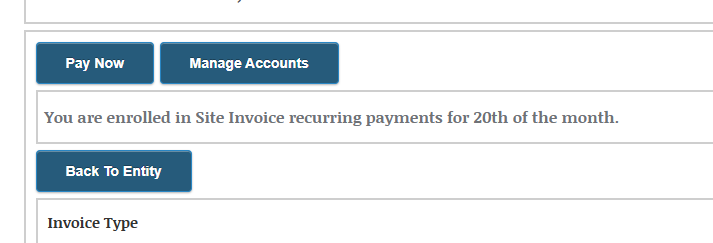
On the Payment Portal Page you will now see a banner beneath the “Manage Accounts” button that indicates the account has been successfully set up for recurring payments:
Note the ACH company id: 9889091401 will be the originator for ACH transactions. Please update ACH authorizations with your bank to avoid disruptions in payment processing.
If any changes to the ACH account used for recurring payments is desired, please ensure the update is made by the 19th for that month’s recurring payment to use the updated information on the 20th.
Once set up, recurring payments will continue to process on the 20th monthly until either the account is edited to remove the recurring payment indicator or the account is deleted.
Once submitted for processing, a payment typically takes 1-2 business days to clear the bank.
If there is an issue with your payment and a void code is received, you will receive a payment failure notification email and the amount due will re-post to the account. The return timing of void codes in the system is bank dependent and can take up to 5-10 business days.