
How do I make a One-Time Payment?
First, go to https://www.ebenefitsnow.com/go/bcbsnc and log in using the UserId and Password provided by Lawyers Insurance.
You will then be at the Home Page which will display system information about your firm.
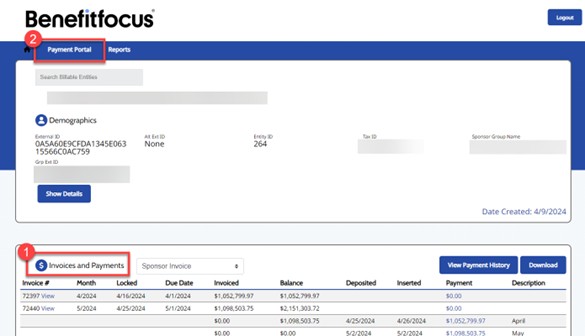
- The area at the bottom of the screen (marked 1) is the Invoices and Payments area where you can see and download billing information. The Payment Portal (marked 2) is where you can pay your invoice.
- Click “Payment Portal” (marked with a 2 below)
On the Payment Portal Page, select the radio button beside “Site Invoice” under Invoice Type and click on the “Pay Now” button (You will be able to change the amount to submit in steps 1 and 2 below):

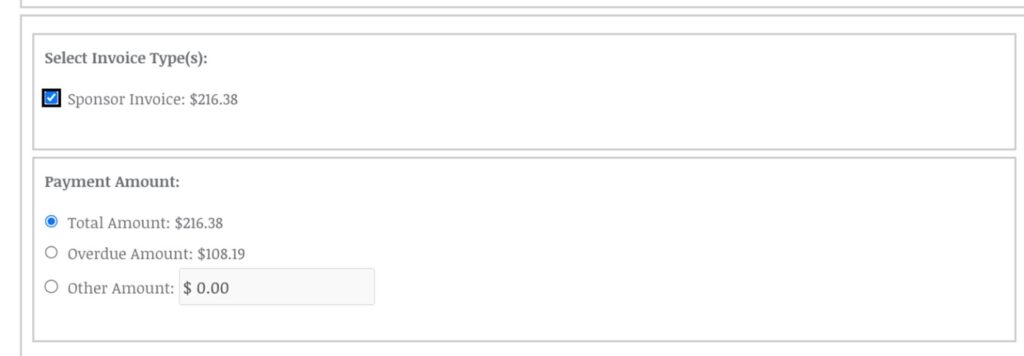
- Select Invoice Type “Site Invoice” (The radio buttons are not active until this is selected)
- Click on the radio button applicable:
- “Total Amount” to pay the full amount due
- “Overdue Amount” to pay all past due amounts (If “Overdue Amount” is not visible, only current month premiums are due)
- “Other” to make a partial invoice payment
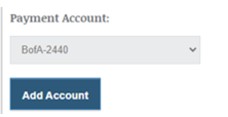
3. Select the stored payment account (if applicable) or click the “Add Account” button to input your bank account information to use for the transaction if you do not already have a stored account. Please see “How do I Add a Payment Account” in the Billing FAQs, then continue with the steps below to process payment using that account.
If you use a stored payment account: please continue to step 4 below.
***If you selected “Add Account” during the Pay Now process***:
After saving the added account information you will be returned to the payment screen and must continue with the steps below to submit a payment using the added account
Please re-verify the Payment Amount selected as it will default back to “Total Amount” selection after adding an account
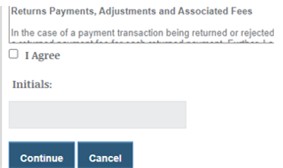
4. After reviewing the payment terms and conditions click the “I Agree” box to indicate agreement.
5. Add your initials to indicate who from your organization initiated the payment.
6. Click “Continue”
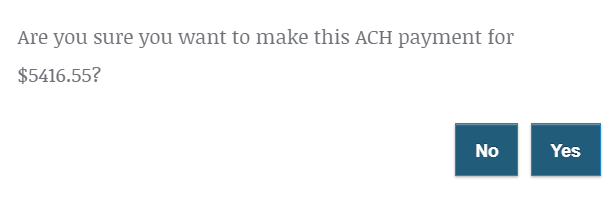
A pop-up window will appear to confirm the amount you wish to submit for payment.
Click “Yes” after confirming the amount is correct to complete the payment.
Once your payment has been initiated online, you will see a new row appear under Account History on the Payment Portal showing the payment transaction. A receipt is available by clicking on “Receipt” on the right side of the row under “Actions”:
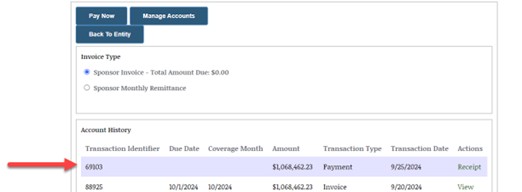
Click on the button “Back to Entity” to return to the main Billing Portal Home Page.
The newly made payment will also be visible on the billing portal home page in the Invoices and Payments section. The balance due “Balance” (center column) will reflect $0.00 once the most recent invoice has been paid in full.

Once submitted for processing, a payment typically takes 1-2 business days to clear the bank.
If there is an issue with your payment and a void code is received, you will receive a payment failure notification email and the amount due will re-post to the account. The return timing of void codes in the system is bank dependent and can take up to 5-10 business days.